
Aftergame
How to use Aftergame at ManorCon
This short guide will help you maximise your use of Aftergame, ManorCon 2026’s official games organiser. You can either go through the guide step by step, or skip to the section that you are interested in.
The TL;DR version of the below: sign up for Aftergame, join the ManorCon group in Aftergame, and mark yourself as going to the ManorCon 2026 event in the ManorCon group; then you can browse the games, and create new games for others to join.
Step 1 – Download and/or join Aftergame
Aftergame is a smartphone app – that also works on web browsers – that helps you plan, find and join games. Simply visit this page which takes you to the Aftergame signup page, giving you the app download links, or the ability to sign up on a web browser if you do not want to download the app.
You can also search for Aftergame in the app store on your device.
Step 2 – Join ManorCon
Before you can mark yourself as attending the ManorCon 2026 event, you’ll need to join the ManorCon group, i.e. the group that is hosting the event. You can click here or type ManorCon into the Search option. Once you’ve found the group click Join Group.
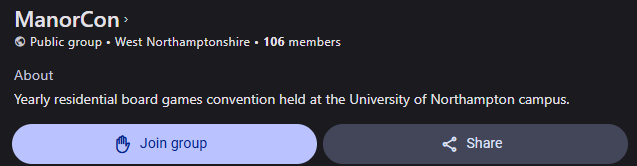
Step 3 – Join ManorCon 2026
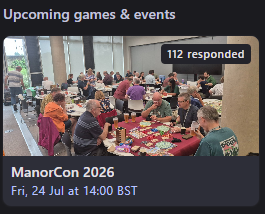
Now you just need to go to the ManorCon 2026 event and mark yourself as attending. From the main Group page either click on the event or go direct to it via this link.
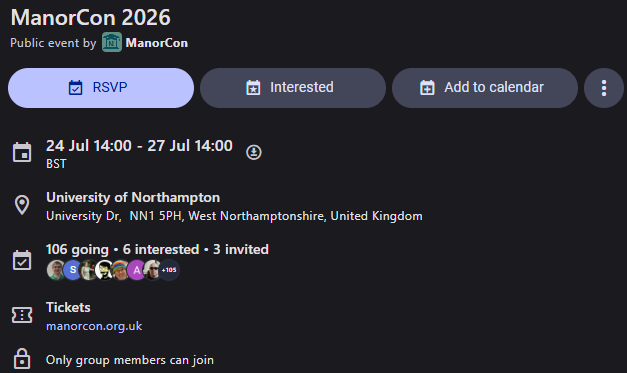
Click on RSVP and select Going.
You should now see something like the image below.
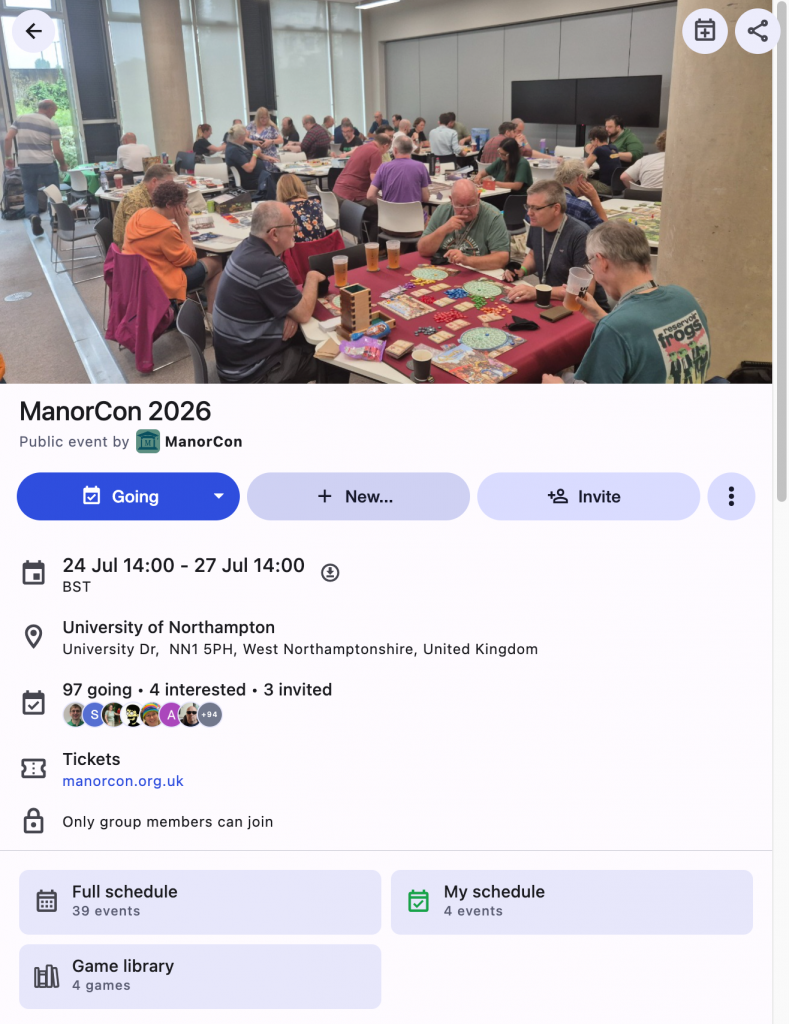
Step 4 – Discover Games
You can scroll through the schedule in advance and claim a seat in any game or event with space. Depending on each game’s permissions, you can bring guests or invite your friends to join the game, too.
Don’t worry about keeping track of them all. The app has clash protection built in, so it will notify you if you have a possible scheduling conflict when you attempt to join a game.
Step 5 – See Your Schedule
Once you’ve joined some games, you can see the schedule you’ve built for yourself under My Schedule.
Your personal schedule is formatted the same way as the full schedule, but will only show games and events you’ve claimed a spot in, plus any events that the hosts have added to everyone’s schedules.
Games and events can also be added to a calendar by clicking the calendar icon at the top right of the game listing.
Step 6 – Plan Games
You can plan games in advance for others to join so you definitely get to play the things you’re most excited about.
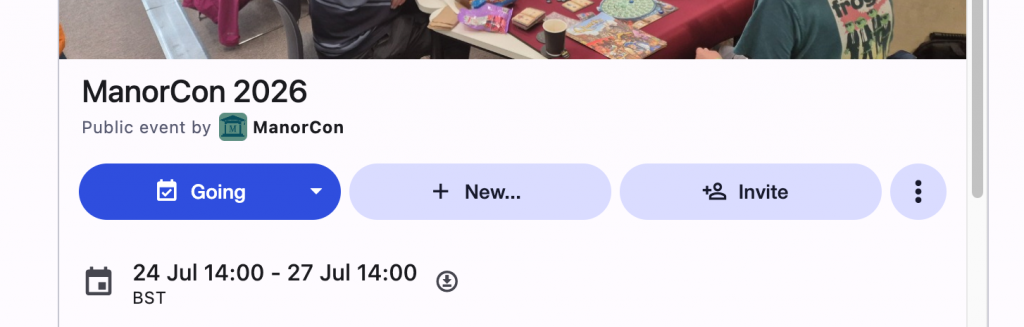
To plan a game, simply click the “+ New…” button and then select one of the following options:
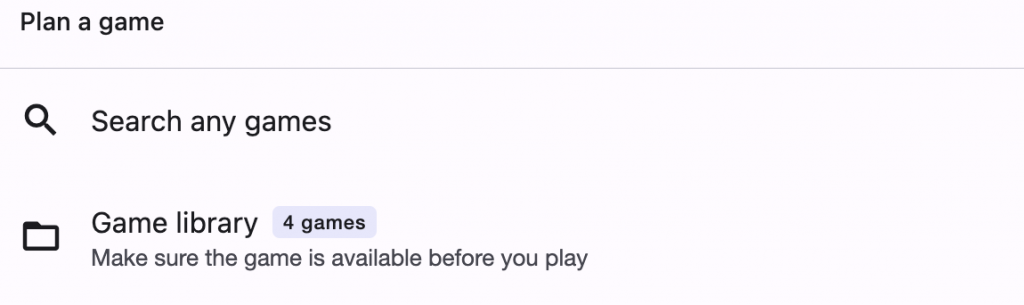
Choose the Plan a game option and select if you want to plan a game of your own, or one from the ManorCon game library: –
Follow the steps in this page to create the game: –
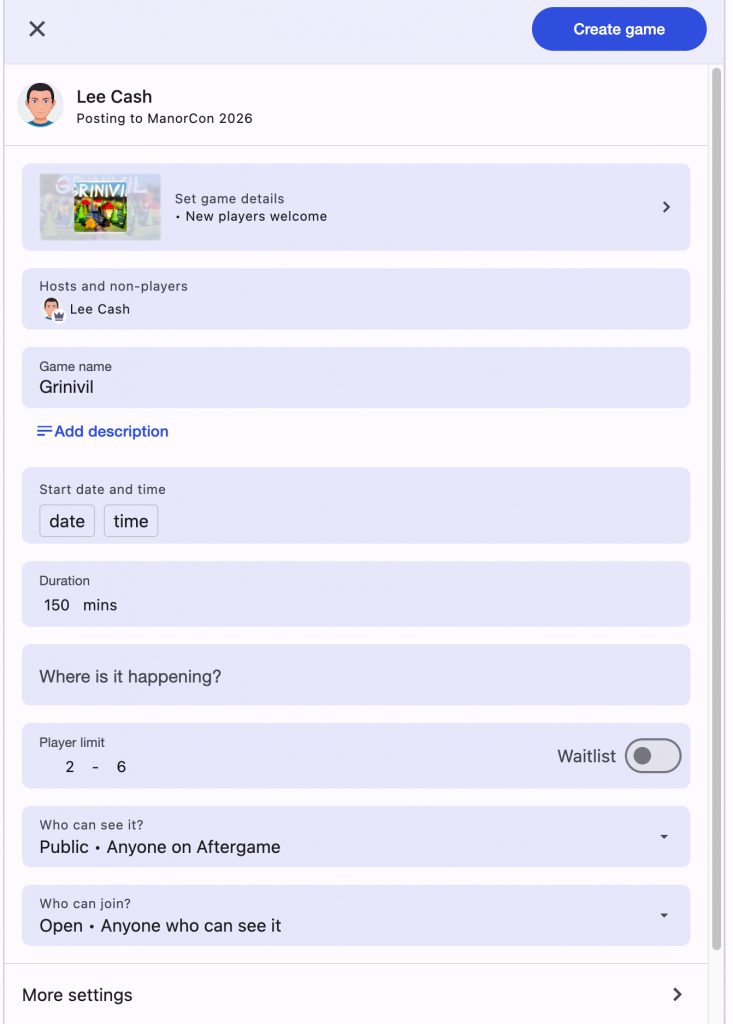
Once you have set up the game, you’ll now be taken to a page like this, where you can decide if you’d like to invite others to your game, or simply leave it as an open game for others to join in. If you have selected “invite only” under “Who can join?” for the game then others will still be able to indicate their interest in your game, leaving you to select which players you would like to join the game.
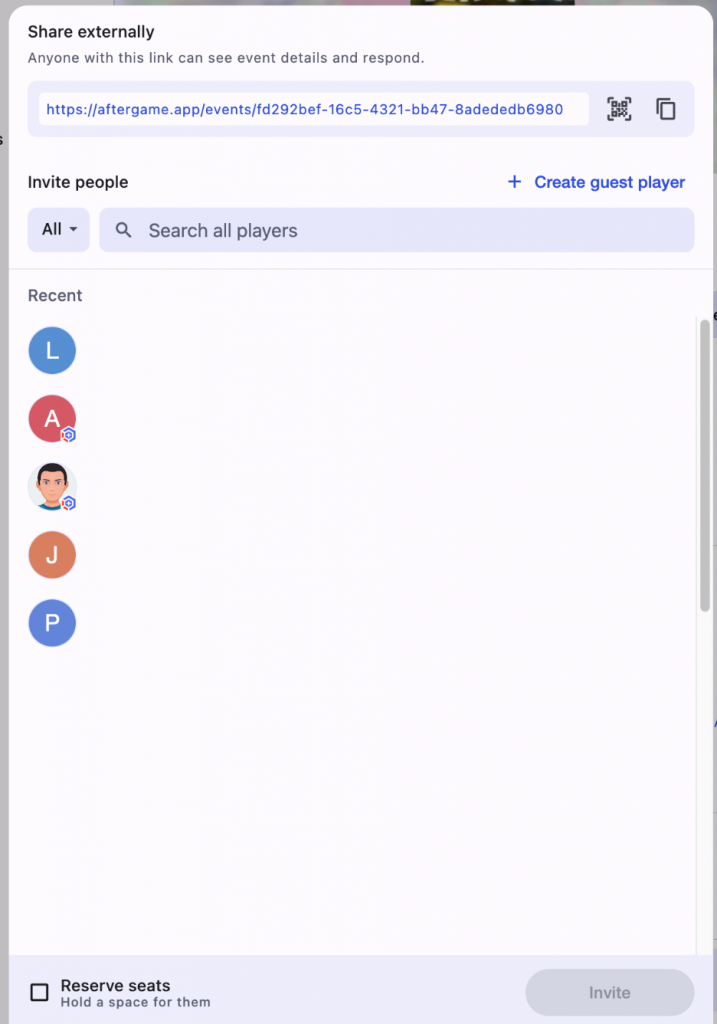
Note that, when you create a game, you can reserve seats for people you have already agreed to play with in advance.
Other useful functionality for ManorCon 2026
A couple of additional features that we think you’ll find useful for ManorCon 2026 are:
Add Friends
Connect with old and new friends on Aftergame to see what your friends will be playing and easily coordinate schedules. Do this from within your Profile area within the app.
Add Your Games Library to Aftergame
You can import your games library directly from BGG by going to Settings -> Import within the app. This will copy all of your BGG collection listings into the app.
Log Games
Aftergame gives you the ability to log your games, including start players, scores, pictures and discussion. This is automatically shared with all other players of the game.
Want To Play
Add games to your Want To Play list. When anyone creates a listing for that game you’ll be notified so you can quickly claim a seat.
Further help and detailed instructions on Aftergame can be found here.